AI colour role
AI is already a significant and essential part of many software applications, and there are occasions where it is important to clearly inform the user that a process or outcome has been generated or influenced by AI.
Being transparent with the end user about the involvement of AI helps set expectations and supports appropriate trust. AI colours can reinforce that communication, but colour is not a sufficient disclosure on its own.
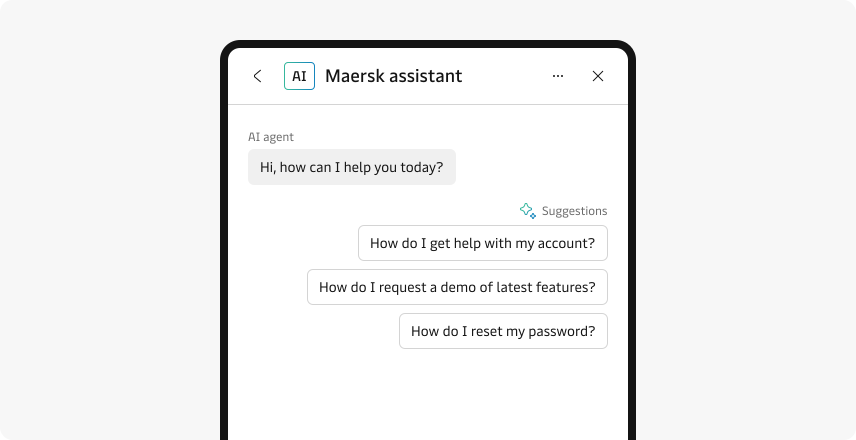
AI colour role
Similar to our other colour roles, our AI colours provide you with text, background, border, and on-background design tokens.
These tokens can be used to style components and other UI elements, helping to reinforce the distinction between AI-generated and human-created content or to highlight AI features. Pair the colour treatment with an explicit, persistent AI label whenever it communicates AI involvement.
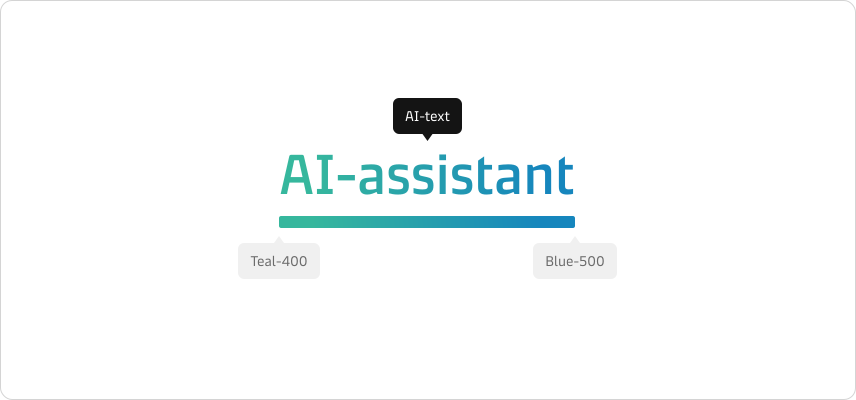
The colours have been carefully selected from our current palette, where we blend our teal and blue together.
We use gradients to make this colour role stand out compared to our other colour roles, which only use a single solid colour value.
These AI tokens are part of all our current themes as a new AI colour role. All brands currently use the same AI colours, similar to our feedback colours. Dark mode support is included out of the box.
Accessibility
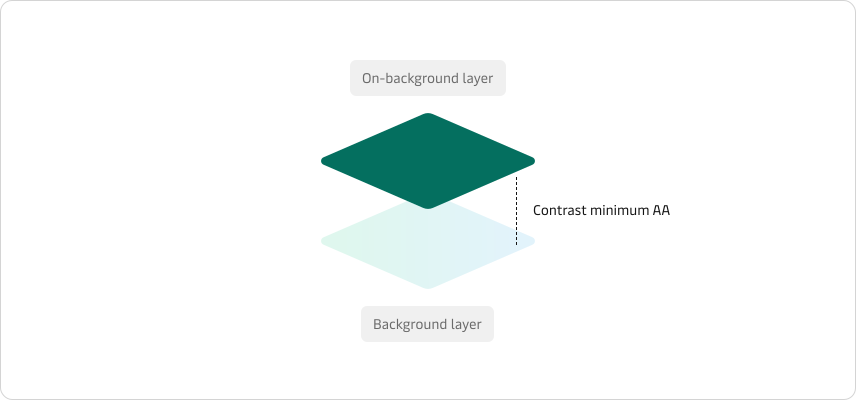
All of our AI colours have been tested to meet our accessibility standards. We provide on-background tokens to ensure you always have an accessible colour to use on top of our AI backgrounds.
Do not rely on colour alone to communicate AI involvement. Pair AI colours with a visible text label and appropriate semantic information so the meaning remains clear to people who cannot perceive the colour treatment.
Applying AI colours in Figma
Since only colour styles in Figma support gradients, they can’t be added as Figma variables like our other colour roles. The distinction is that in your colour dropdown, all the AI colours will be represented with a circular colour sample, while all the variables will be shown with a square colour sample.
Components
You can apply AI colours to existing components. In this example, we will add an AI border to our input field to indicate that AI will respond to my question.
Text and icons
Both text and icons are supported. For text, use the ai-text-gradient style; for icons, we recommend using the ai-text-angle-gradient, which will apply an angled gradient.